


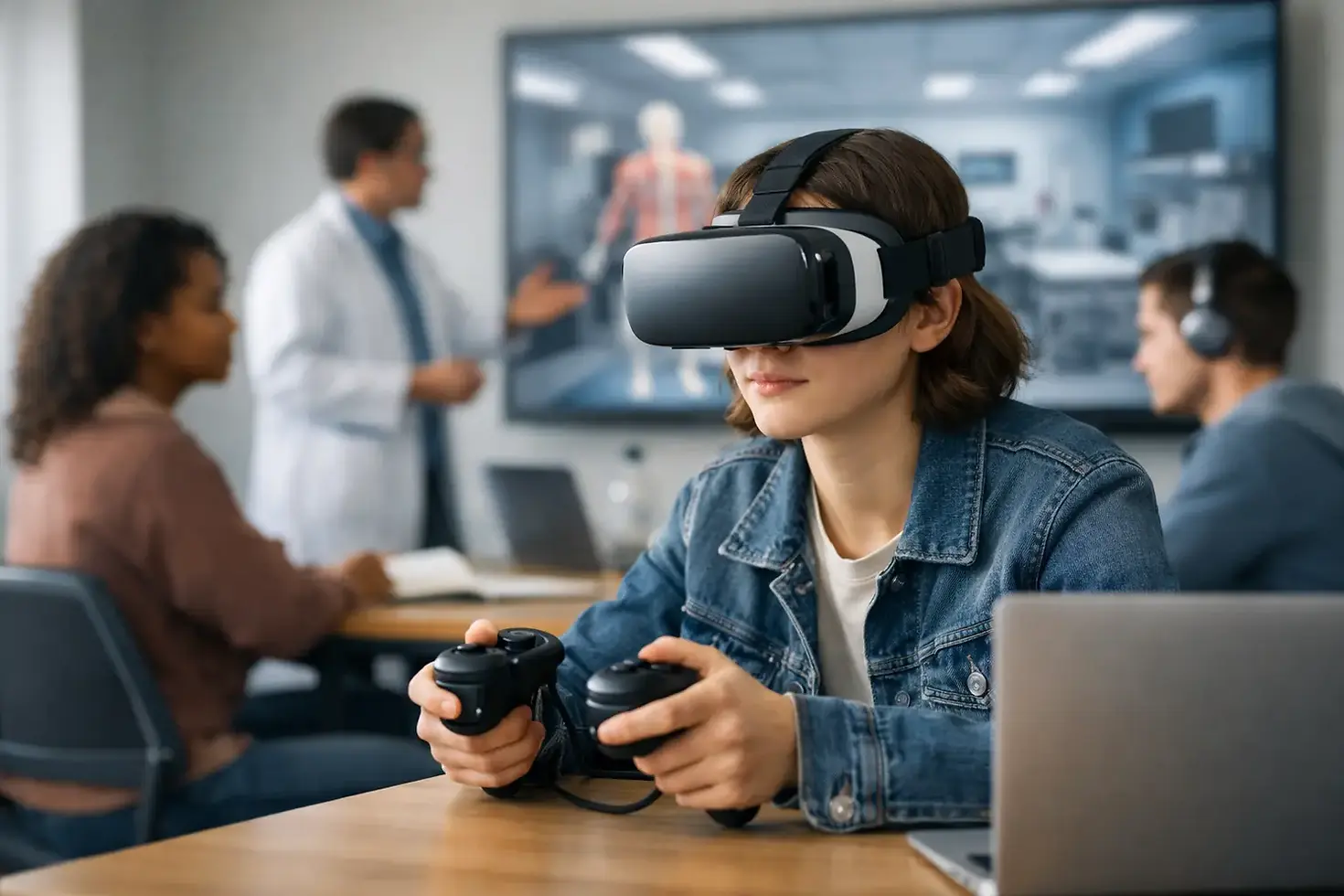
Are Virtual Simulations Accessible in College?

A simulation can turn a quiet room into a serious conversation about leadership, ethics, or communication. But that impact only matters if every student can enter the experience, understand what is happening, and contribute meaningfully. So, are virtual simulations accessible? They can be - but accessibility must be designed into both the learning activity and the way an instructor facilitates it.
For college educators, this is not simply a compliance question. It is a student-success question. When a simulation excludes a student because of an inaccessible interface, unclear instructions, time pressure, or an assumption about technology access, the class loses perspective. The discussion becomes less representative, and the learning experience becomes less effective.
Are Virtual Simulations Accessible by Default?
No. A virtual simulation is not automatically accessible because it is online, interactive, or available on a laptop. Digital delivery may remove some barriers, such as transportation or scheduling challenges, while introducing others. Students may encounter content that cannot be read by a screen reader, videos without captions, decision timers that create unnecessary pressure, or group activities that depend on fast verbal responses.
Accessibility also extends beyond disability accommodations. A first-year student using an older phone, a commuter relying on campus Wi-Fi, an English learner processing unfamiliar business language, and a student managing anxiety may all experience the same activity very differently. The most effective simulations anticipate those differences without lowering the intellectual challenge.
That distinction matters. Accessible learning is not easier learning. It is learning designed so students can demonstrate judgment, empathy, ethical reasoning, and communication skills without irrelevant obstacles getting in the way.
What Accessibility Looks Like in a Learning Simulation
An accessible simulation gives students more than a way to log in. It gives them a fair opportunity to interpret the scenario, make decisions, collaborate, and reflect on the outcomes.
Accessible technology and content
The platform should work with keyboard navigation and common assistive technologies. Images, charts, and interactive elements need meaningful text alternatives. Videos should include accurate captions, and audio-based instructions should have a written equivalent. Clear color contrast is essential, especially when color signals risk, progress, or decision outcomes.
Educators should also look for plain, readable instructions. A student should not have to decode the interface before they can analyze the leadership dilemma or ethical conflict at the center of the activity. Consistent navigation, visible progress indicators, and clear error messages help students focus their energy on learning rather than troubleshooting.
Flexible participation without diluted expectations
Some simulations are built around speed, competition, or live interaction. Those elements can increase energy, but they can also create barriers if they are treated as the only way to participate. A student who needs additional processing time should still be able to engage with the same decision-making challenge.
Flexibility may include adjustable timers, advance access to scenario vocabulary, written response options, or a short individual reflection before a group discussion. In a live class, an instructor can allow students to contribute through shared documents or chat as well as spoken conversation. The goal is not to remove collaboration. It is to create multiple ways for students to participate in it.
Instructional accessibility
Even a technically accessible tool can fall short if the activity is not introduced well. Students need to understand why they are playing, what skills they are practicing, how their decisions will be evaluated, and what support is available if they get stuck.
This is especially important for simulations involving interpersonal conflict, cultural awareness, or ethical dilemmas. Students may bring different lived experiences to the scenario. A thoughtful framing helps them distinguish between analyzing a role and revealing personal information. It also establishes discussion norms that make disagreement productive rather than personal.
The Trade-Off: Engagement Versus Access Is the Wrong Frame
Instructors sometimes worry that accessibility requirements will make a gamified activity less dynamic. In practice, inclusive design often makes simulations stronger for everyone.
Captions support students watching in a noisy residence hall. Written instructions reduce confusion for students who missed a verbal explanation. Pauses for reflection improve the quality of responses from students who need more processing time and from students who tend to answer too quickly. Multiple participation channels can bring forward voices that might otherwise remain quiet.
There are real trade-offs to manage. A high-pressure, timed negotiation exercise may be appropriate when the learning objective is practicing decision-making under pressure. But the time pressure should be intentional, not accidental. If speed is not the skill being assessed, students should not be penalized for needing more time to navigate the activity or process complex information.
The same is true for competition. Leaderboards and points can motivate some students, while discouraging others who fear public failure or are still learning the format. Consider whether public ranking advances the course outcome. In many cases, team-based goals, private feedback, or progress milestones preserve the energy of play while keeping the focus on growth.
How Educators Can Evaluate Virtual Simulations for Accessibility
Before adopting a simulation, academic leaders should ask more than whether it is engaging. They should ask how the experience works for a broad range of learners in real classroom conditions.
A useful evaluation includes these questions:
Can students complete essential tasks using only a keyboard?
Are captions, transcripts, readable text, and meaningful image descriptions available?
Does the activity work reliably on the devices and internet access students are likely to have?
Can instructors adjust timing, group roles, or response formats when accommodations are needed?
Are instructions clear enough for students who are new to simulations, unfamiliar with course terminology, or learning in a second language?
Does the debrief offer multiple ways to demonstrate learning, including discussion, writing, and structured reflection?
The vendor conversation matters as much as the feature list. Ask how accessibility testing is conducted, what documentation is available, and how updates are handled when barriers are identified. Institutions should also involve disability services professionals, instructional designers, and students in pilot reviews. They will notice issues that are easy to miss in a product demonstration.
Facilitation Can Make or Break Access
The instructor remains central to an accessible simulation experience. A strong facilitator explains the purpose of the activity before launch, checks that students can access the materials, and normalizes the use of available supports. This avoids putting individual students in the position of having to publicly request help.
During the activity, monitor more than completion rates. Watch for students who are disengaged because they are confused by the interface, excluded from a group role, or uncertain about expectations. A brief midpoint check can surface problems early enough to solve them.
The debrief is where accessibility and learning outcomes come together. Rather than asking only, “Who won?” ask students what information they prioritized, what assumptions shaped their choices, and how they would respond differently in a workplace setting. Give students time to reflect before calling for responses. This creates space for deeper thinking and strengthens discussion quality across the room.
Build Access Into the Adoption Plan
Accessibility works best when it is part of implementation, not a last-minute fix. Program directors can include accessibility questions in procurement processes, faculty training, and course-design reviews. Instructors can share simulation expectations early, provide a low-stakes practice activity, and collect feedback after the first use.
It also helps to treat student feedback as evidence, not a courtesy. Ask students where they felt confident, where they experienced friction, and whether the format allowed them to show what they knew. Their answers can improve future sessions while signaling that participation belongs to everyone.
For educators using gamified learning to teach the human skills students need beyond college, access is part of the lesson itself. E.I. Games believes meaningful simulation experiences should invite students to practice judgment, communication, and empathy in ways that are active, memorable, and reachable. When more students can fully participate, the conversation gets richer - and the real-world learning lasts longer.


Comments